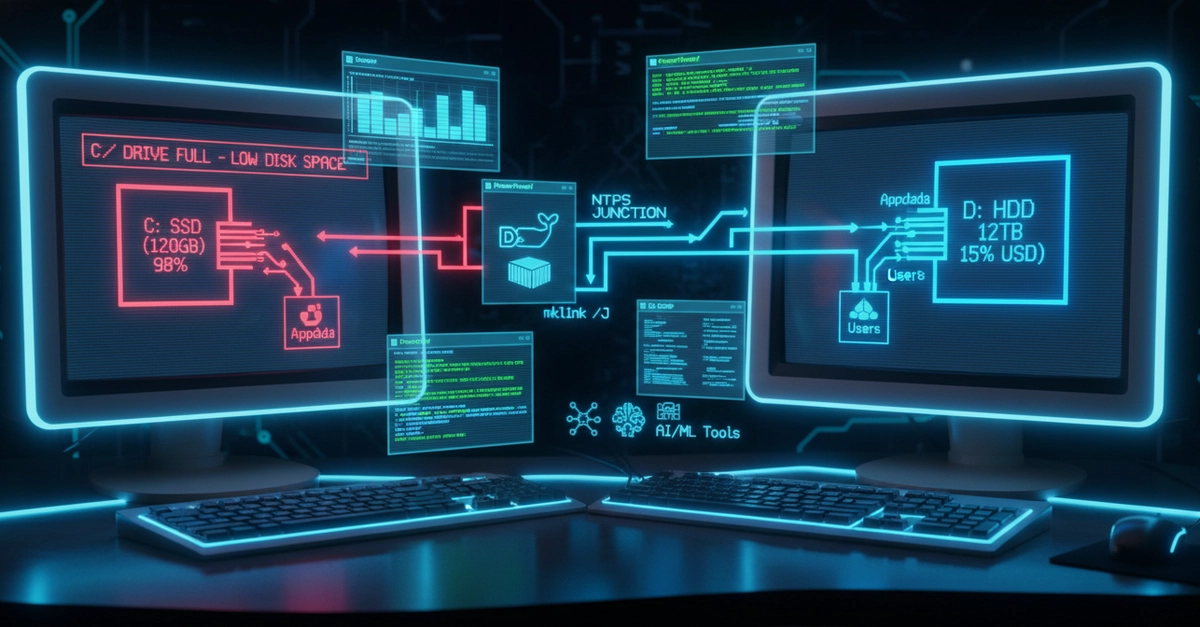
Here’s the thing: the C: drive, once the king of the castle, is slowly becoming a digital landfill for developers. Think VS Code extensions, Docker images, and AI model caches — all these behemoths, even when supposedly installed elsewhere, still cling to C:\Users\<user>\<a href="/tag/appdata/">AppData</a> like digital barnacles.
It’s a silently insidious problem. Your SSD fills up. Windows updates stutter and fail. Performance tanks. AI models decide to cache terabytes of data. Docker devours your precious gigabytes. And those Electron apps? They seem to duplicate Chromium storage everywhere you look.
Fed up with manual symlinking and the gnawing fear of breaking something vital, one developer built a safer, automated solution: the Windows AppData Junction Migrator. It’s a PowerShell utility designed to surgically remove heavy AppData folders from your primary drive, relocating them to a less cramped destination, and then meticulously patching the hole with NTFS junctions.
This isn’t just a fancy copy-paste job. To your applications, nothing changes. They still think their data resides on C:. But your SSD? It breathes a sigh of relief, massive amounts of space suddenly reclaimed.
The Magic of NTFS Junctions
NTFS junctions are the unsung heroes here. They’re filesystem-level redirects, baked right into Windows. Unlike simple shortcuts that applications often punt on, junctions behave like genuine folders to the operating system and its programs. This makes them remarkably stable, fast, and crucially, compatible with a staggering array of applications. They’re perfect for those ever-growing caches, package manager stores, AI model repositories, and yes, even Docker layers.
The tool’s workflow is designed to be as strong as it is liberating. It meticulously scans for potential targets, verifies paths, and crucially, creates migration snapshots before any data moves. Then, it orchestrates the transfer using robocopy /E /MOVE, a utility known for its resilience, retries, and metadata preservation — far more dependable than a basic copy command followed by a blind delete.
And here’s the critical part: if anything goes awry during the move, junction creation, or validation process, the script automatically initiates a rollback, restoring the original folder to its pristine state. This is absolutely vital when dealing with live, actively used application data. No more praying you don’t brick your dev environment.
Taming the Data Beasts
Developers and AI engineers, in particular, will find this immensely valuable. Extensions and AI indexes can balloon into gargantuan sizes. Imagine moving your AppData\Roaming\Cursor or AppData\Local\Cursor folders without a second thought. Docker Desktop, a notorious storage hog, can have its AppData\Local\Docker directory safely relocated.
Package managers like npm, pnpm, and yarn also become prime candidates, their caches and stores often growing without limit. And for those deep in the AI trenches, think Hugging Face caches, Ollama storage, and massive model downloads — all prime candidates for offloading from your primary SSD.
The script’s defensive measures extend to how it handles data. Before any migration, it meticulously records file counts, destination paths, sizes, and the state of the original directory. The original directory is only purged after a successful transfer and validation, ensuring that robocopy truly completes its task.
PowerShell’s New-Item -ItemType Junction command is the final piece of the puzzle, establishing the transparent link back to the relocated data. The script actively blocks potentially dangerous paths, like core Windows system folders, preventing accidental data loss.
Always close applications first. Stop Docker if migrating Docker. Stop AI servers before migration. Run PowerShell as Administrator.
This utility isn’t just about freeing up space; it’s about restoring sanity to systems buckling under the weight of modern software. On my own machine, this freed up tens of gigabytes, smoothing out the performance kinks that had become almost a background hum.
Is This a Permanent Fix?
This approach is particularly effective on laptops with constrained SSDs, dedicated developer workstations, AI-focused machines, and systems that juggle dual-drive configurations. It fundamentally addresses the issue of hidden data bloat that installation wizards rarely, if ever, account for. It’s a pragmatic solution to a problem that’s only going to get worse.
This isn’t just a tool; it’s an architectural shift in how we manage our development environments on increasingly storage-limited hardware. It’s a reminder that sometimes, the most elegant solutions lie in understanding and utilizing the underlying OS features.
Why Does This Matter for Developers?
For too long, developers have been forced to accept the SSD storage tax as an inevitable part of the job. The sheer volume of data consumed by modern development tools—from complex IDEs and their ever-expanding plugin ecosystems to containerized workflows and local AI models—makes managing disk space a Sisyphean task. Tools that offer a strong, automated, and safe way to reclaim this space are not just convenient; they’re essential for maintaining productivity and preventing system instability. The reliance on NTFS junctions, a mature and stable Windows feature, means this solution is likely to remain effective across various Windows versions and future application updates. It bypasses the need for more complex virtualization or redirection solutions for everyday data bloat.
🧬 Related Insights
- Read more: MCP in 2026: AI’s USB-C Moment, or Just Another Hype Cycle?
- Read more: Gemma 4’s Codeforces ELO Jumps from 110 to 2,150 — Google’s Local AI Gambit
Frequently Asked Questions
Will this break my applications?
This tool uses NTFS junctions, which are designed to be transparently handled by most Windows applications. As long as applications are closed during the migration and the process completes successfully, applications should continue to function normally. The script includes rollback mechanisms to revert changes if issues are detected.
Is this safe for AI models and Docker data?
Yes, the tool is specifically designed to handle large data stores like AI model caches (Hugging Face, Ollama) and Docker Desktop data. It uses robocopy for resilient transfers and performs validation to ensure data integrity before removing original files. However, it’s always recommended to follow the safety guidelines, such as closing applications and stopping relevant services (like Docker or AI servers) before initiating a migration.
Can I migrate any AppData folder?
The tool automatically scans common locations like AppData\Local, AppData\Roaming, and AppData\LocalLow, and even some hidden dot-app folders. It also includes safeguards to prevent the migration of critical Windows system folders and active system temporary directories, ensuring the stability of your operating system.